Before you start
You need Owner or Admin access to add people. You can give someone your own access level or lower.
| Console access | What they can do | Typical use |
|---|---|---|
| Admin | Set up connectors such as Microsoft 365, manage agents, people, storage and billing. | Your IT administrator or office manager |
| Member | Work with the agents they supervise and manage files. Cannot change connectors, people or billing. | Staff who work with an agent |
| No login | Listed on your team so agents know who they are. Cannot sign in. | Contacts and staff without console access |
Add the person
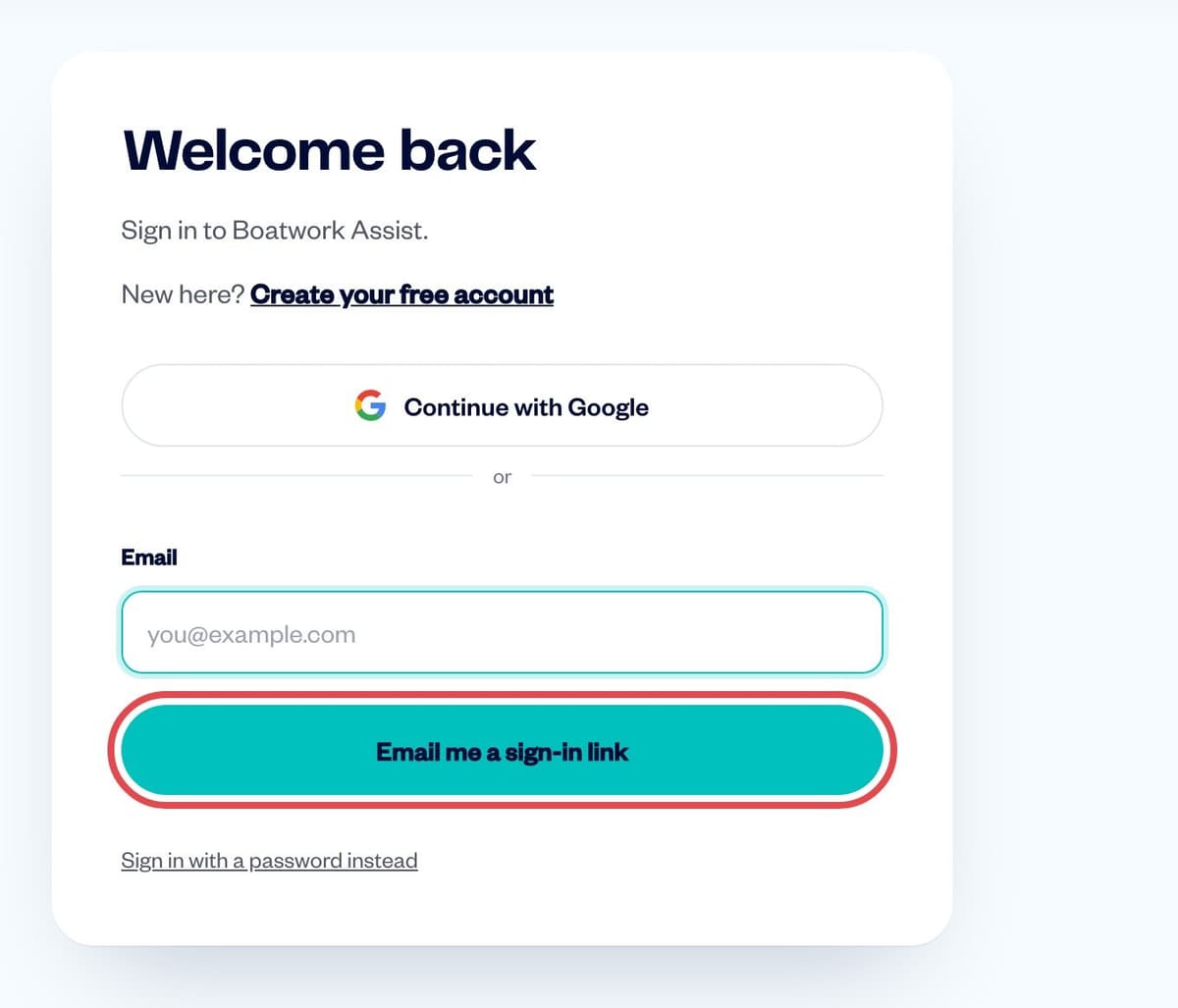
Go to ai.boatwork.co. Type your email, click Email me a sign-in link, then open the link from the email.
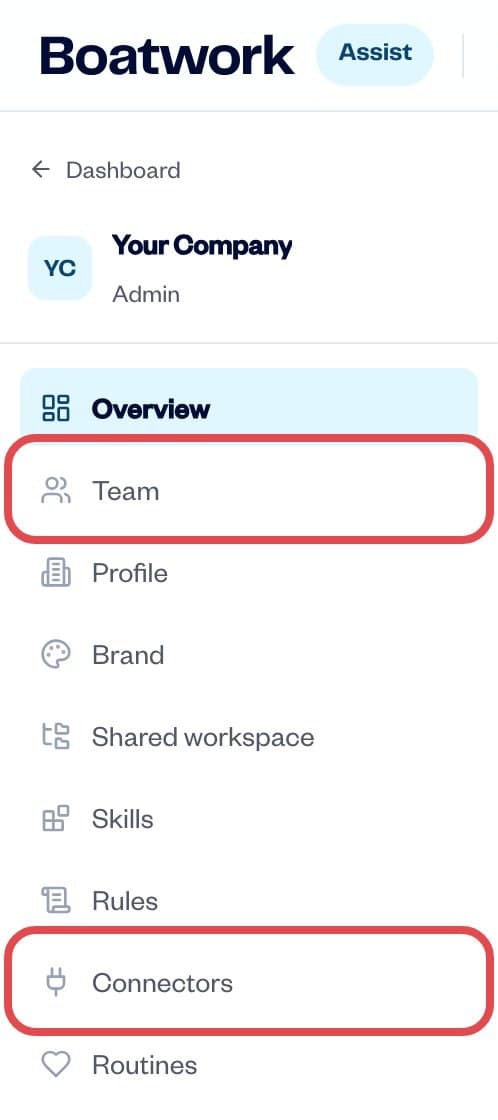
Boatwork sign-in Open your company. In the left menu, click Team.
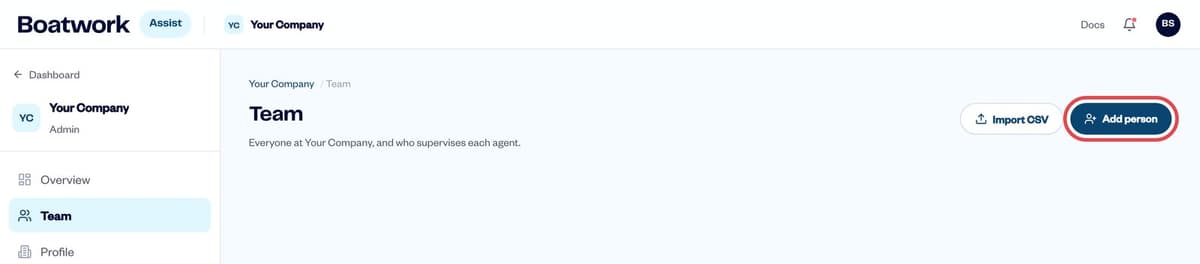
Team in the left menu Click Add person (top right).
Add person on the Team page Fill in the form:
- Name: the person's full name
- Title: their role, for example IT Manager
- Emails: their work email. The invite is sent here.
- Console access: Admin, Member or No login (see the table above)
- Phones, Gender and Notes are optional.
Click Save and invite. (With No login, the button says Save.)
They get an invite email. Their row shows Invited until they accept and sign in. Someone already on your team without a login? Click … on their row and choose Invite to console.
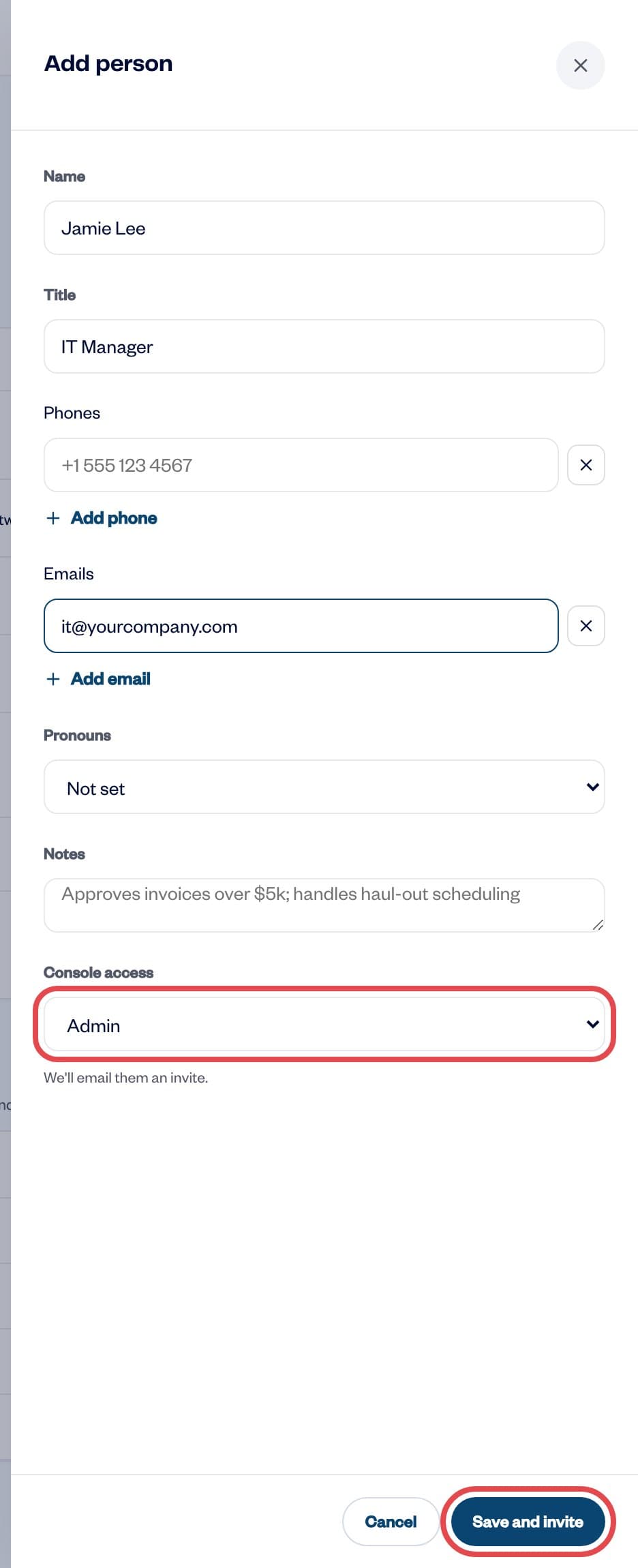
Add person: Console access, then Save and invite (example entries)
Change or remove access
On Team, click … (More) on the person's row.
Choose what you need:
- Make Admin or Make Member changes their access (owners only).
- Remove console access stops them signing in. They stay on your team.
- Remove from team removes them completely.
- Resend invite or Cancel invite for an invite that has not been accepted.
- Invite to console gives a login to someone already on your team.
Adding your IT administrator
Give your IT administrator Admin access so they can set up your Microsoft Entra app with their own login. When they finish, you can click … on their row and choose Remove console access, then Invite to console again when the app needs renewing.


