Before you start
- A Microsoft Entra role of Cloud Application Administrator or Application Administrator (or Global Administrator).
- A Boatwork login with Owner or Admin access. If your IT administrator does not have one, add them as an Admin.
- About 15 minutes. You do this once per company; each agent then connects its own mailbox.
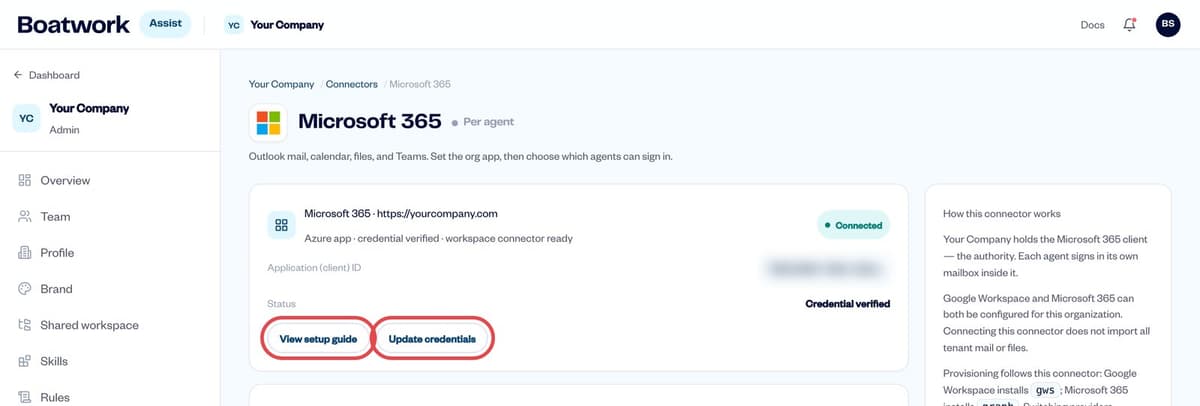
Boatwork shows the same Entra instructions inside the app: Connectors → Microsoft 365 → View setup guide.
Register the app
Go to entra.microsoft.com, then Identity → Applications → App registrations, and click + New registration.
Name:
Boatwork Assist.Supported account types: Accounts in this organizational directory only (single tenant).
Redirect URI: choose Web and paste
https://ai.boatwork.co/api/email/callback/microsoftClick Register. On the Overview page, copy the Application (client) ID and the Directory (tenant) ID.
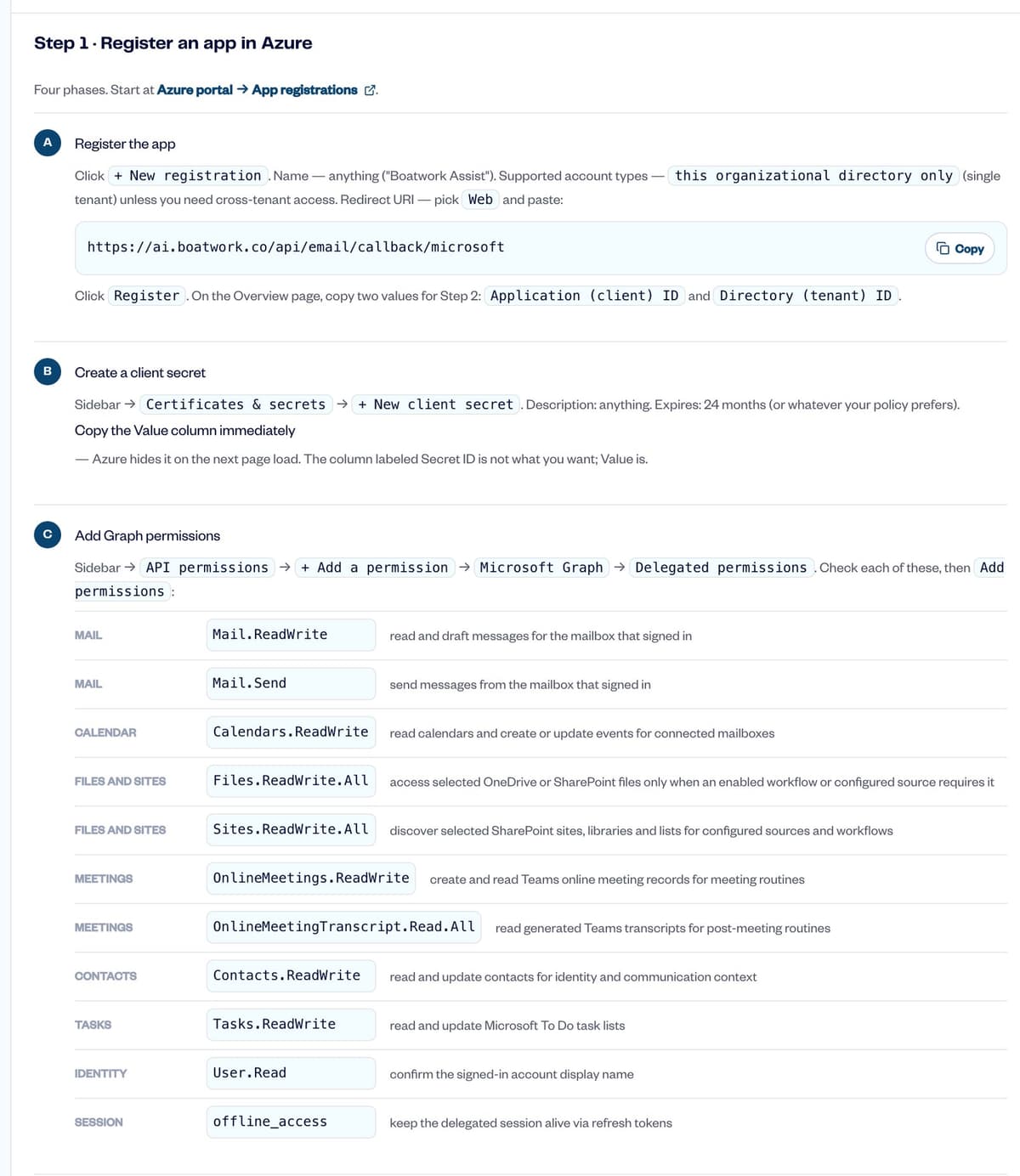
Boatwork's built-in setup guide: the redirect URI and the permissions to add
Create a client secret
In the left sidebar, click Certificates & secrets, then the Client secrets tab, then + New client secret.
Description:
Boatwork Assistand the month, for exampleBoatwork Assist 2026-11. Expires: 730 days (24 months), the longest the portal offers. Click Add.Copy the Value column right away. It is about 40 characters and is hidden once you leave the page. Do not use Secret ID (it looks like a GUID). Write down the expiry date.
Keep the secret Value private. Paste it straight into Boatwork; do not email it.
Optional, for a secret longer than 24 months: use Microsoft Graph PowerShell. It works only if your tenant policy allows it, and Microsoft does not allow a permanent secret.
Connect-MgGraph -Scopes "Application.ReadWrite.All"
$app = Get-MgApplication -Filter "appId eq '<Application (client) ID>'"
$s = Add-MgApplicationPassword -ApplicationId $app.Id -PasswordCredential @{ displayName = "Boatwork Assist"; endDateTime = (Get-Date).AddYears(5) }
$s.SecretText
Add Microsoft Graph permissions
Boatwork asks Microsoft for these delegated permissions:
| Permission | What Boatwork uses it for |
|---|---|
Mail.ReadWrite | Read and draft messages for the mailbox that signed in |
Mail.Send | Send messages from the mailbox that signed in |
Calendars.ReadWrite | Read calendars and create or update events |
Files.ReadWrite.All | Open selected OneDrive or SharePoint files when a workflow needs them |
Sites.ReadWrite.All | Find selected SharePoint sites, libraries and lists |
OnlineMeetings.ReadWrite | Create and read Teams meeting records |
OnlineMeetingTranscript.Read.All | Read Teams transcripts after meetings |
Contacts.ReadWrite | Read and update contacts |
Tasks.ReadWrite | Read and update Microsoft To Do lists |
User.Read | Confirm the signed-in account |
offline_access | Keep the connection working without signing in again |
In the left sidebar, click API permissions → + Add a permission → Microsoft Graph → Delegated permissions.
Check every permission in the table above, then click Add permissions.
Grant admin consent
Still on API permissions, click Grant admin consent for your tenant and confirm. Every row should show a green check under Status.
Without admin consent, each person who connects a mailbox sees Need admin approval.
Optional: if a Conditional Access policy sets a Sign-in frequency, exclude the Boatwork Assist app, so mailboxes are not asked to sign in again on a schedule.
Save the credentials in Boatwork
Sign in at ai.boatwork.co. In the left menu, click Connectors, then Microsoft 365.
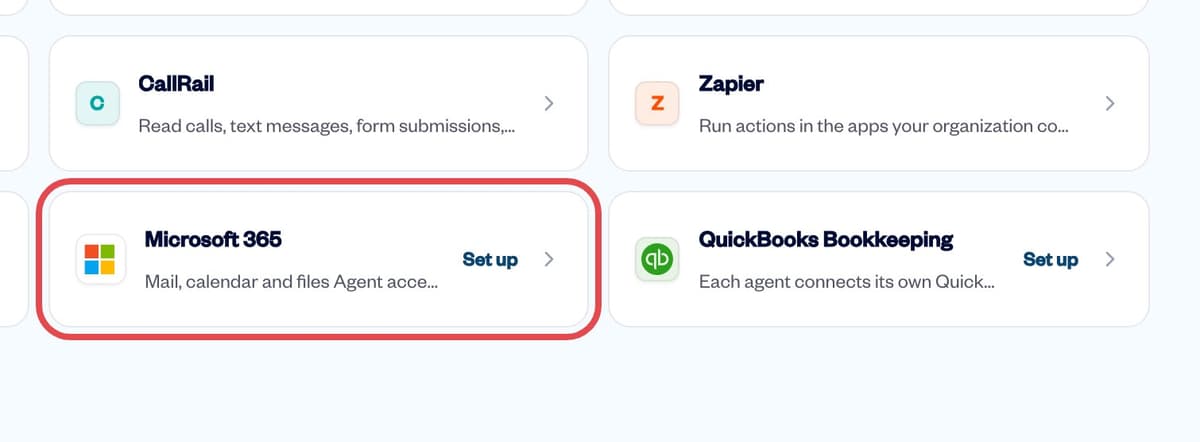
Connectors: Microsoft 365 The first time, the page shows Step 2 · Load the credentials. If Microsoft 365 is already set up, click Update credentials to get the same fields. Fill in:
- Application (client) ID
- Directory (tenant) ID
- Client Secret: the secret Value
Click Save and verify. Boatwork checks the values with Microsoft before saving them.
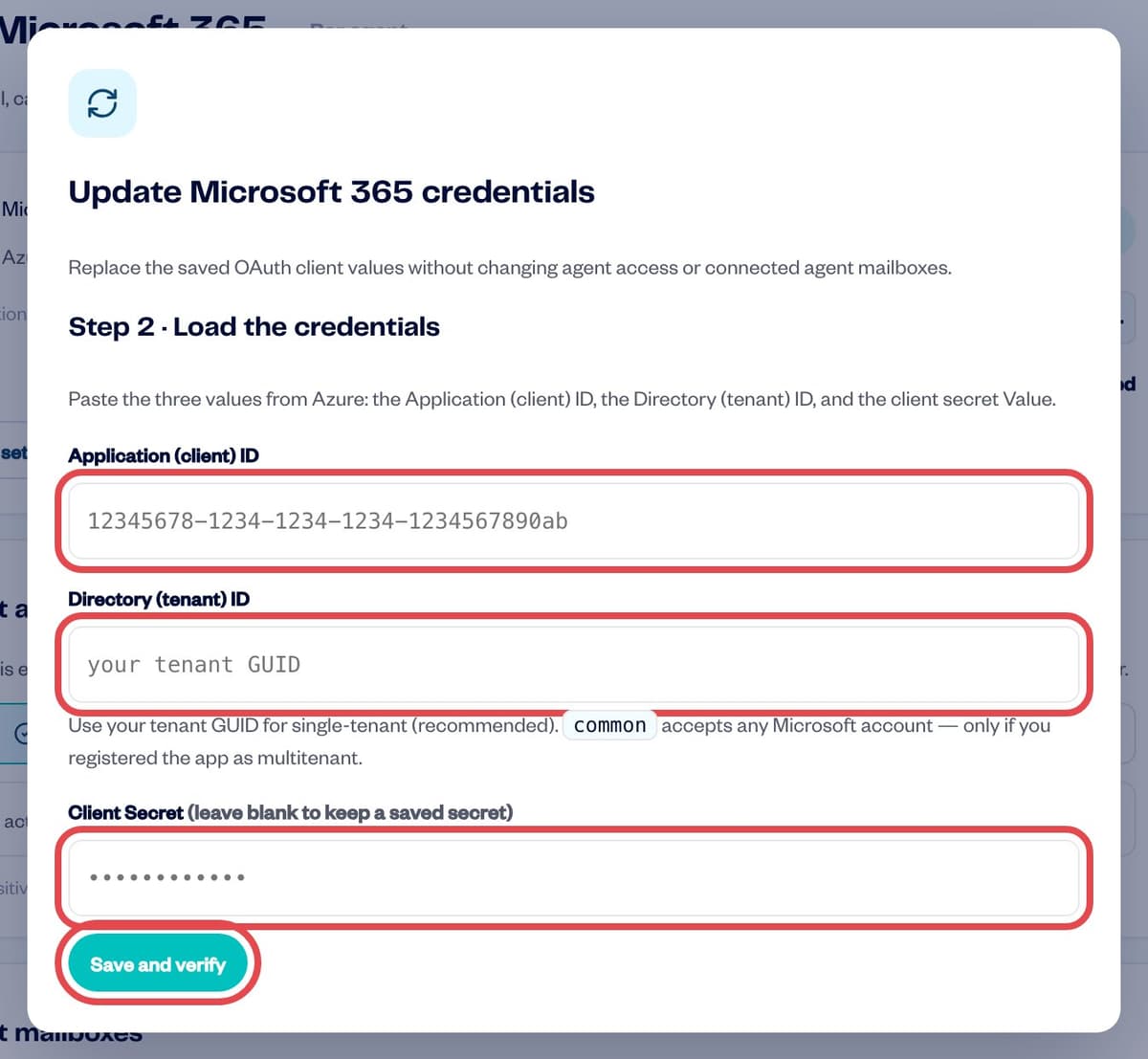
The three values, then Save and verify
Choose which agents can use Microsoft 365
On the same page, under Agent access, choose All agents, Selected agents or One agent only. An agent that is not allowed here cannot connect a mailbox.
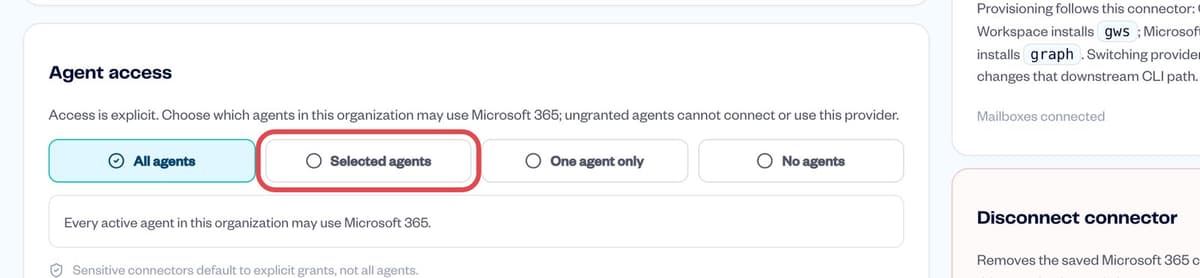
Agent access
Next: connect each agent's mailbox.
Renew the client secret
Client secrets expire, and the Entra portal suggests 6 months by default. When the secret expires, every connected mailbox in your company stops working at once and shows Needs reconnecting. Renew it before the expiry date.
In Entra, open the Boatwork Assist app, then Certificates & secrets → + New client secret, and copy the new Value (as in "Create a client secret" above).
In Boatwork, open Connectors → Microsoft 365 → Update credentials. Leave the client ID and tenant ID as they are, paste the new Client Secret, and click Save and verify.
Boatwork checks every connected mailbox as soon as you save and reconnects each one the new secret works for. The message after saving says how many are working. Nobody needs to sign in again.
Delete the expired secret in Entra, and set a reminder two weeks before the new expiry date.
Troubleshooting
| You see | What to do |
|---|---|
| "That looks like a Secret ID (UUID), not the Secret Value" | The wrong column was copied. Create a new secret and copy its Value right away. |
| "Microsoft rejected the Client ID or Client Secret" | Check that the client ID and secret come from the same app, and that the secret has not expired. |
| "Need admin approval" when a mailbox signs in | Click Grant admin consent in Entra (see above), or have an administrator approve the request. |
| Every mailbox shows Needs reconnecting after months of working | The client secret most likely expired. Renew it. |


